Adding MCP Servers to Agents in Azure AI Foundry
Learn how to connect MCP servers to Azure AI Foundry agents using Python. This guide covers unauthenticated and authenticated connections, tool approval workflows, and current portal limitations.

As I’ve been getting more into AI agents in Azure AI Foundry, I also wanted to add MCP server connections to those agents. This is not quite as straight forward (yet) as I initially hoped, so let’s dive in. 🔥
Preparing an model in Azure AI Foundry
Before an agent can be prepared, we need an model in Azure AI Foundry. We create one on the AI Foundry portal. This model serves as the “base” on which the Agent is based upon.
Make sure to select an model which supports MCP in Azure AI Foundry. Sadly, I haven’t found any official documentation regarding this. If you select a wrong model, you may end up with errors like this:
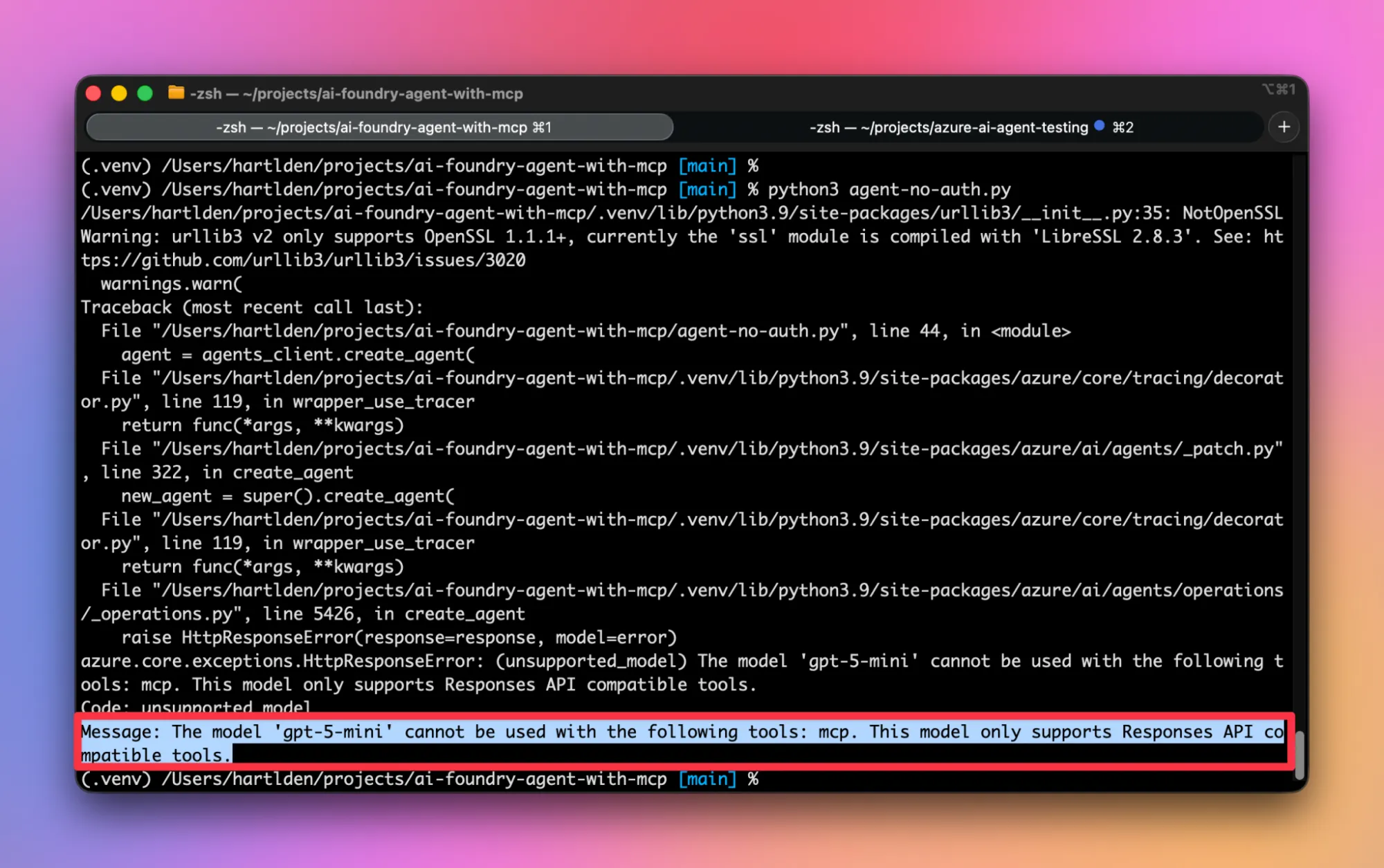
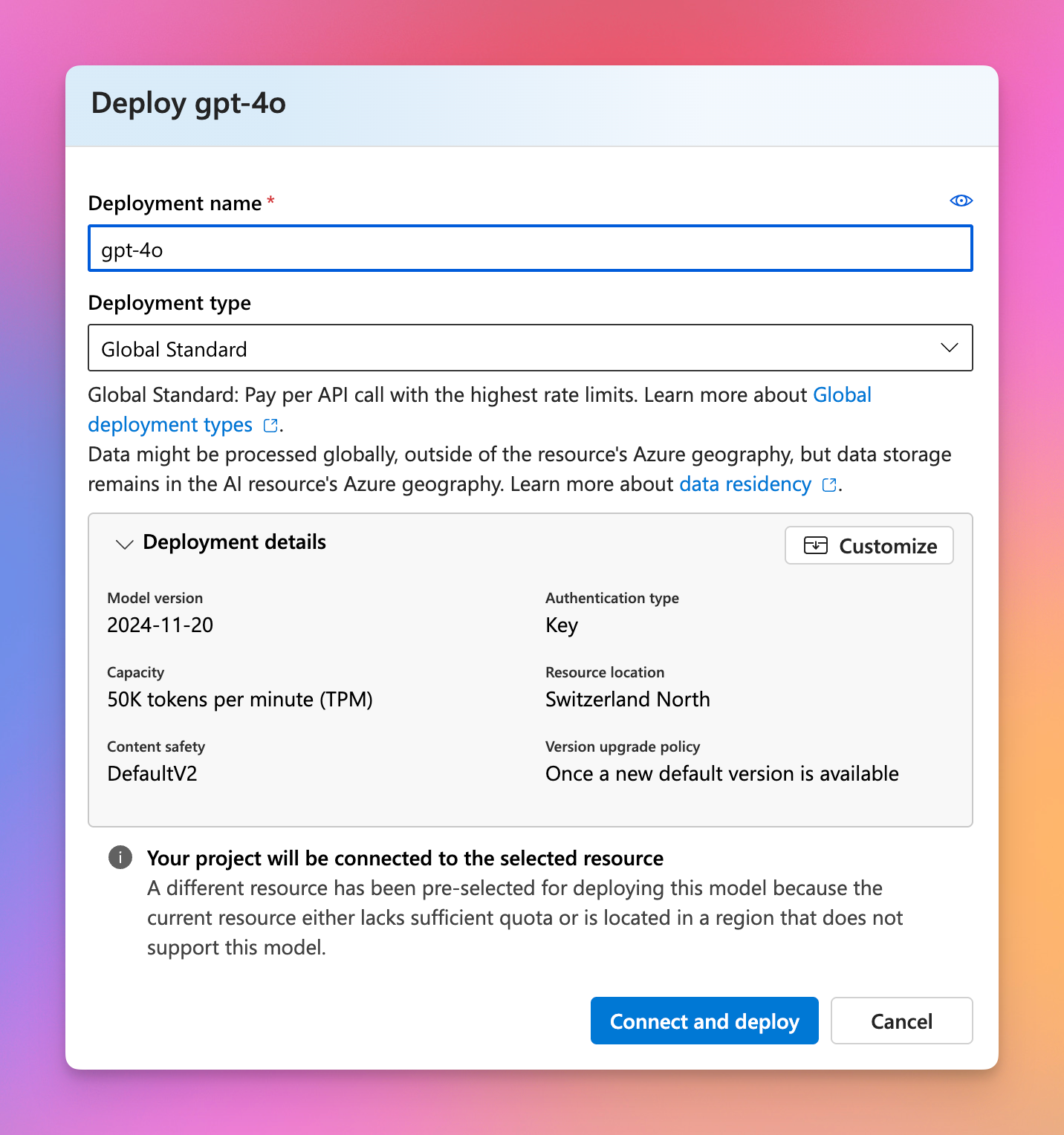
Because of the lack of documentation, choosing the right model can be a challenge. In my testing I found that gpt-4o works. Maybe gpt-5 also works, but as of now, an extra registration with Microsoft is required to use that model in AI Foundry. So gpt-4o it is then 👏. Take note of the deployment name, as you will need that later.
Let’s start small – MCP connection without authentication
Let’s create a basic MCP connection from an AI Agent to the Microsoft Learn MCP (https://learn.microsoft.com/en-us/training/support/mcp). I think this is a good starting point, because this is as basic as an MCP setup gets. There is no authentication required, you just point the agent to the right URL and ask it to do stuff using the MCP tool.
You can find the code for this example here:
 denishartl
For this first test I just allow the agent to use all tools available (more on that later):
mcp_tool.set_approval_mode("never")The setup is pretty straight forward. First, create the agent with an MCP tool and pass it to an agent run:
# MCP server information
mcp_server_url = '<https://learn.microsoft.com/api/mcp>'
mcp_server_label = 'MicrosoftLearn'

# Initialize agent MCP tool
mcp_tool = McpTool(
    server_label=mcp_server_label,
    server_url=mcp_server_url
)

# Create agent
agent = agents_client.create_agent(
    model=os.environ["MODEL_DEPLOYMENT_NAME"],
    name=agent_name,
    instructions=agent_instructions,
    tools=mcp_tool.definitions
)

# Create run with MCP tool
run = agents_client.runs.create(thread_id=thread.id, agent_id=agent.id, tool_resources=mcp_tool.resources)
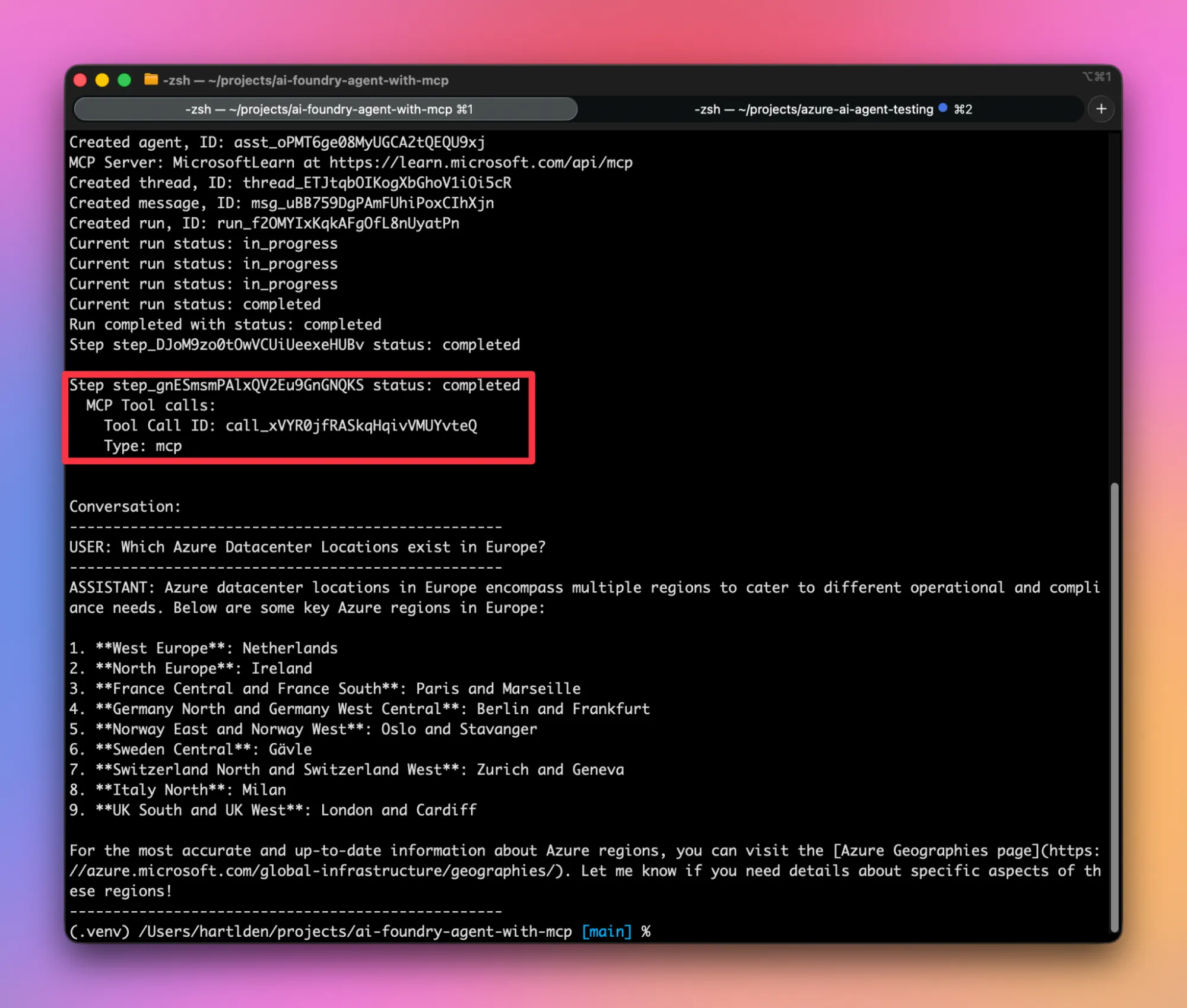
Taking a look at the output from the script run, we can see that the agent answered our request using the MCP tool we provided: That’s pretty neat 🔥
Taking it up a notch – MCP connection with header authentication
For the next example, let’s take this a step further. Now we will use an MCP connection with requires authentication. This will be the case for most MCP connections, so let’s get into it.
For this example, we will use the Notion MCP server I talked about in a previous post (check it out: https://denishartl.com/2025/10/12/run-notion-mcp-server-in-azure-container-apps/). It requires authentication with an Bearer token, so this is perfect for this example.
You can find the code for this example here:
 denishartl
As of writing this, I don’t know of a way to use MCP servers with Oauth 2.0 authentication.
Expanding the first example with authentication is pretty easy actually. All that is required is one command to update headers for the tool call:
mcp_tool.update_headers("Authorization", "Bearer <password>!")The agent is allowed to use all tools available, like in the first example:
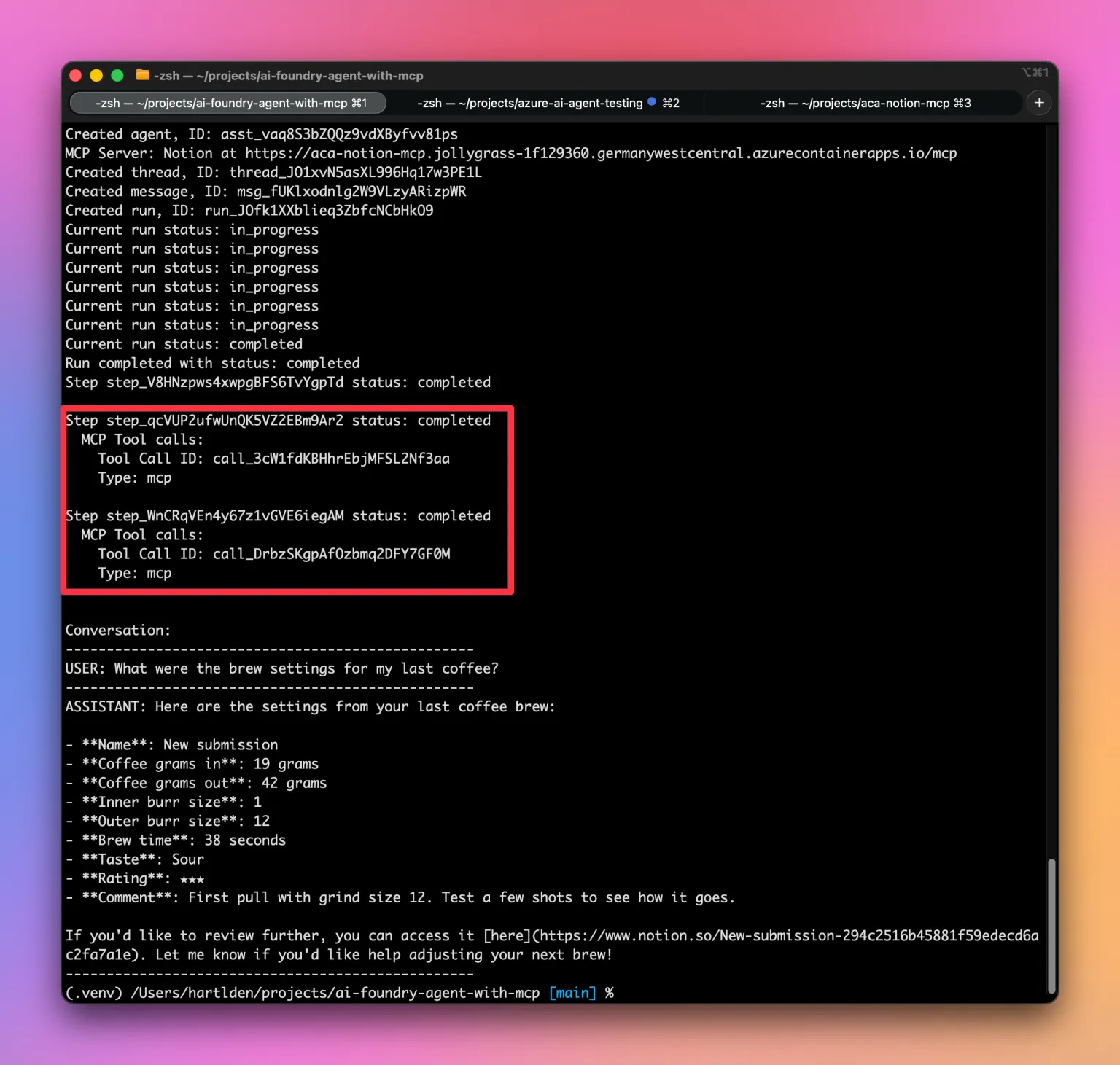
mcp_tool.set_approval_mode("never")After running the agent, we can again see that the agent used the MCP tool (two times) and got the data I requested from Notion. Amazing and fun to see 🎉
Trying the same call with wrong authentication, we can see that the call now fails – confirming the correct use of the header:

You can’t do that – Allowing tools
For the previous tests, we allowed the agent to use whichever tool it wants with this command:
mcp_tool.set_approval_mode("never")But what if you want to approve tool calls before the agent uses them? Let’s explore 🚴
First, lets take a look at how to approve tool calls at runtime. To do this, we need to monitor the agent run and approve the tool calls whenever the agent is waiting for them:
  while run.status in ["queued", "in_progress", "requires_action"]:
      time.sleep(1)
      run = agents_client.runs.get(thread_id=thread.id, run_id=run.id)

      if run.status == "requires_action" and isinstance(run.required_action, SubmitToolApprovalAction):
          tool_calls = run.required_action.submit_tool_approval.tool_calls

          tool_approvals = []
          for tool_call in tool_calls:
              if isinstance(tool_call, RequiredMcpToolCall):
                  try:
                      print(f"Tool call requested: {tool_call}")
                      user_input = input(f"Approve tool call {tool_call.id}? (y/n): ").strip().lower()
                      approve = user_input == 'y'
                      tool_approvals.append(
                          ToolApproval(
                              tool_call_id=tool_call.id,
                              approve=approve,
                              headers=mcp_tool.headers,
                          )
                      )
                      print(f"Tool call {'approved' if approve else 'denied'}")
                  except Exception as e:
                      print(f"Error approving tool_call {tool_call.id}: {e}")

          print(f"tool_approvals: {tool_approvals}")
          if tool_approvals:
              agents_client.runs.submit_tool_outputs(
                  thread_id=thread.id, run_id=run.id, tool_approvals=tool_approvals
              )

      print(f"Current run status: {run.status}")
During the run, the script output looks like this:
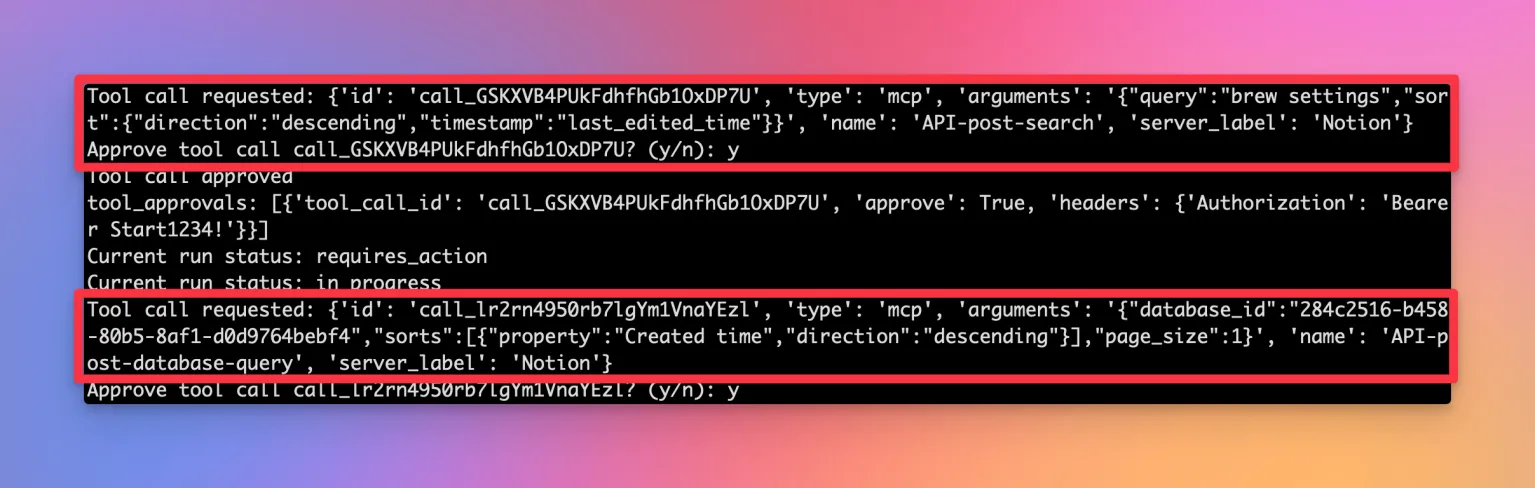
As we can see, we need to approve the two tool calls before the agent can perform them. You can find the example here: https://github.com/denishartl/ai-foundry-agent-with-mcp/blob/main/agent-allow-tools-manual.py
Taking this a step further, we can also initially provide a list of tools for the agent to use during initialization. During the first agent run with tool approval we saw, that the agent needs to perform two tool calls to get the information we request. So what happens, if we only allow it to use one of those tools? Experiment time 🧪
mcp_tool = McpTool(
    server_label=mcp_server_label,
    server_url=mcp_server_url,
    allowed_tools=[
        'API-post-database-query'
    ]
)
When calling the agent now, it first wants to use the API-port-database-query tool, which we approve. It then ends and tells us, that it couldn’t find the requested information. This is because it doesn’t even know about the second tool it could use.
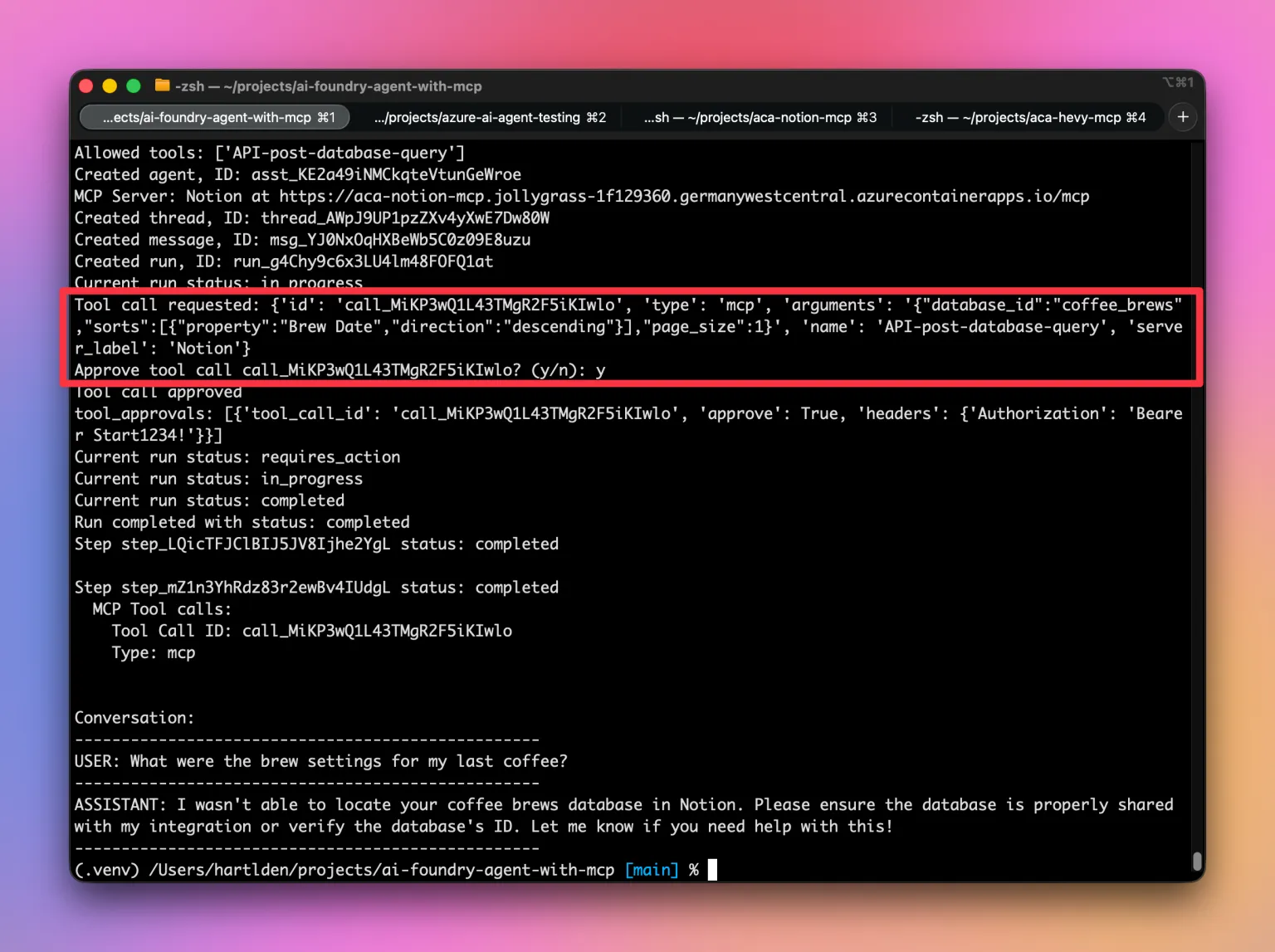
You can find the code example here:
 denishartl
MCP integration in Azure AI Foundry portal
While all of the previous tests were in form of a really simple Python script, let’s also dip our toes into the MCP integration within the Azure AI Foundry portal.
Unfortunately, as of writing this, there is no way to add an MCP connection to an agent at all from within the portal. There just isn’t an option (that I am aware of). Agents previously created otherwise (e.g. via Python) do show up however, and an MCP connection is listed for that agent. Using the agent with an MCP connection however doesn’t work. Here is one example of the very simple Microsoft Learn agent from the first example:
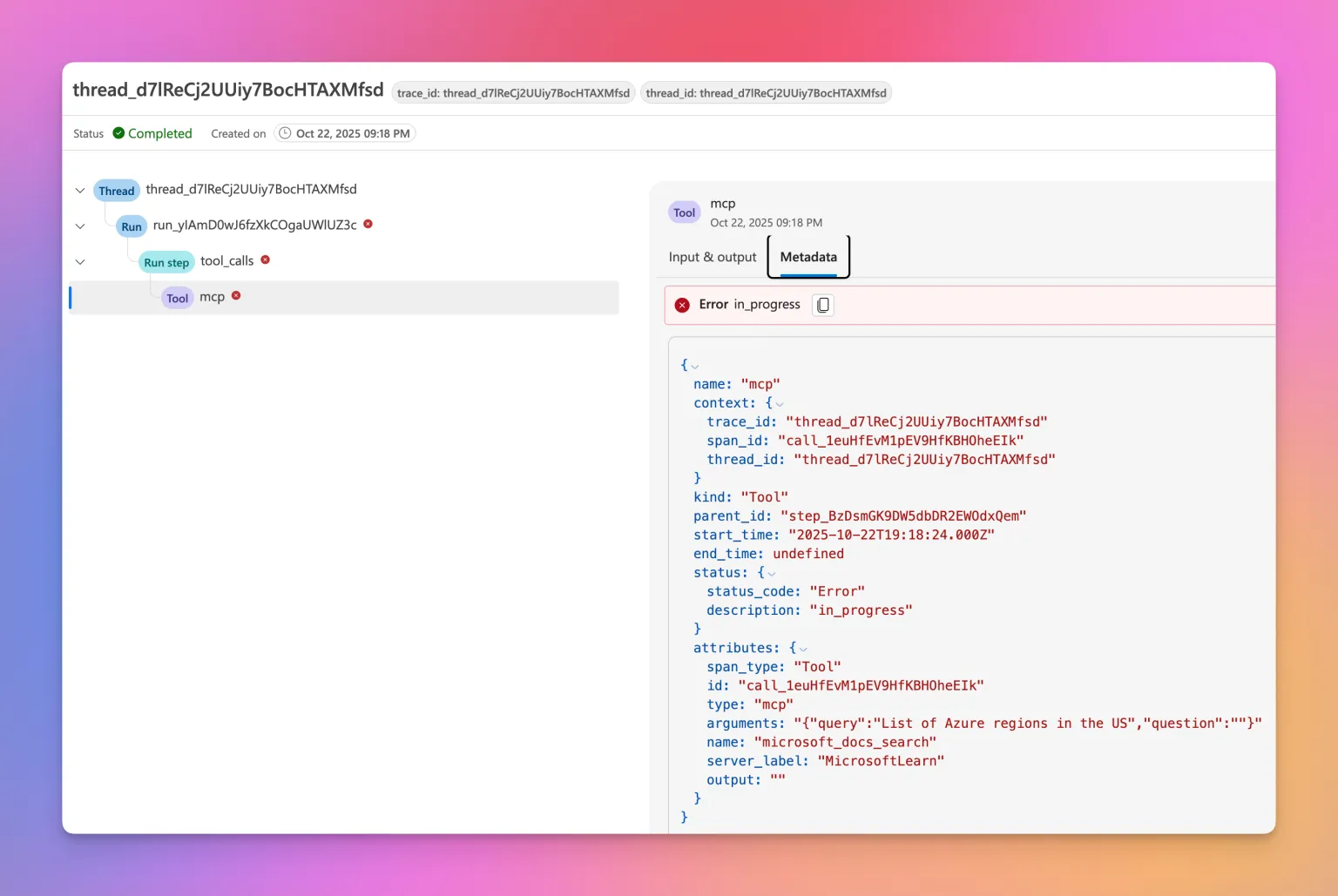
Bye
I hope you enjoyed this experiment with MCP tool usage in Azure AI Foundry agents, I certainly did! You can find the repo with all of the code samples here:
 denishartl
Official Microsoft documentation on this topic can be found here:
- https://learn.microsoft.com/en-us/azure/ai-foundry/agents/how-to/tools/model-context-protocol
- https://learn.microsoft.com/en-us/azure/ai-foundry/agents/how-to/tools/model-context-protocol-samples?pivots=python
Overall, I didn’t find this whole process as easy as I would like it to be. Mainly because the only option to use MCP tools with Azure AI Foundry agents is through code. While this is fine for most use cases, I’d like to see the option in the AI Foundry portal for some quick experimentation and testing. Especially because a large power of AI agents lays in the use of MCP connections and therefore allowing them to communicate with other services – at least in my opinion.
If you like what you’ve read, I’d really appreciate it if you share this article 🔥
What do you think? Leave a comment! I’d love to hear your thoughts.
Until next time! 👋