Expanding Azure AI Foundry Agents with files & documents using the built in vector document store
Learn how to enhance Azure AI Foundry agents with document knowledge using the built-in vector store. A step-by-step guide covering agent creation, PDF file uploads, and querying your documents with AI.


Recently I’ve wanted to try some basic Azure AI Agent enhancement with data in PDF documents. I upload all my personal documents to fileee (https://www.fileee.com/), which allows for easy export of all of the files. This gives the perfect base to experiment with. So let’s dive into Azure AI Foundry agents with vector document store.
Creating the agent
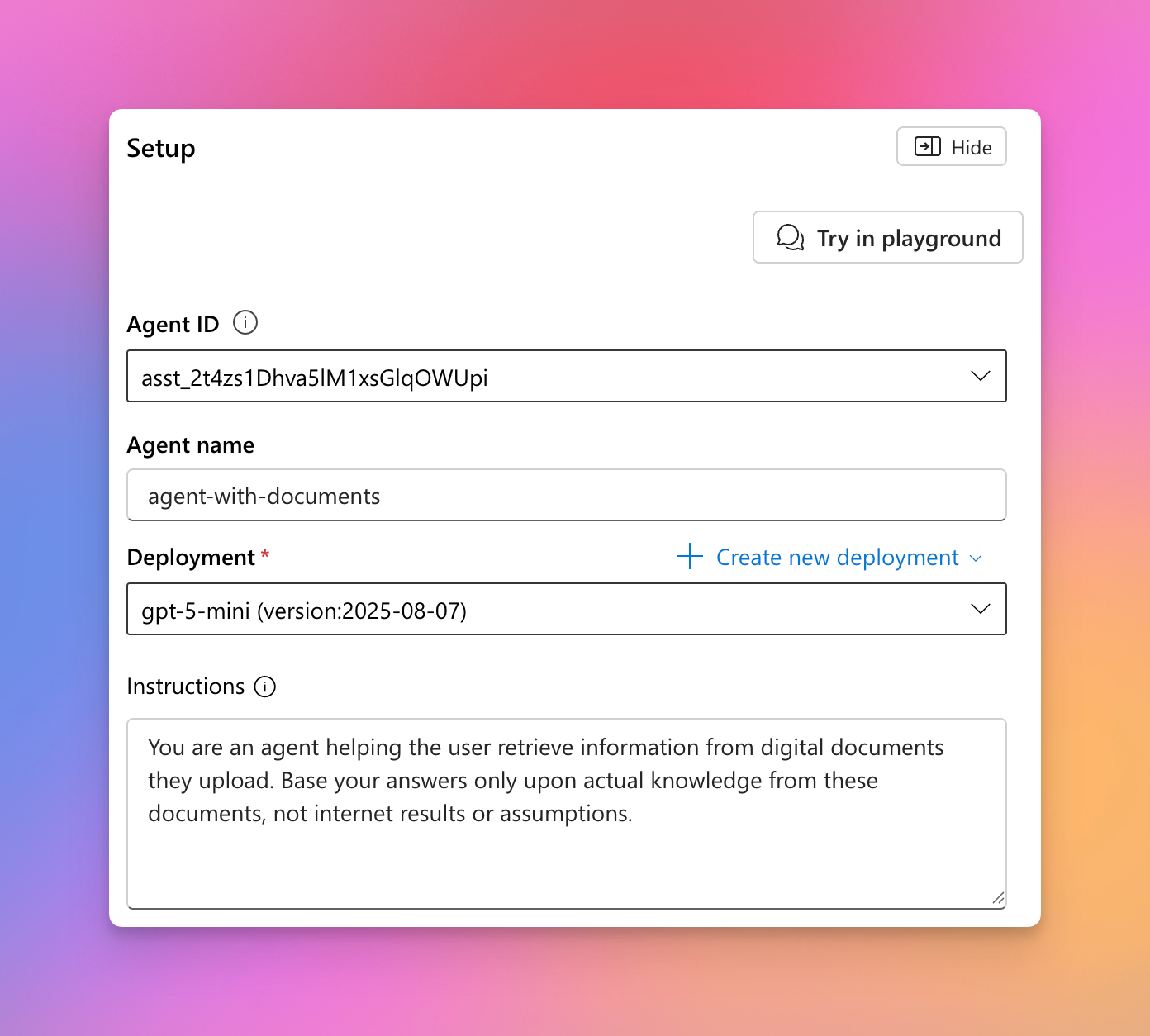
I started by creating a new agent in Azure AI Foundry. I kept this really, simple, only giving the agent an name and adding instructions for the agent to only base answers on information in the documents provided, and not to research or make information up.
Adding knowledge
After the basic agent was set up, I wanted to add the knowledge (aka. documents from which the agent should pull information from). At this point I stood before the question: Use basic file upload (with a vector store) or Azure AI Search?
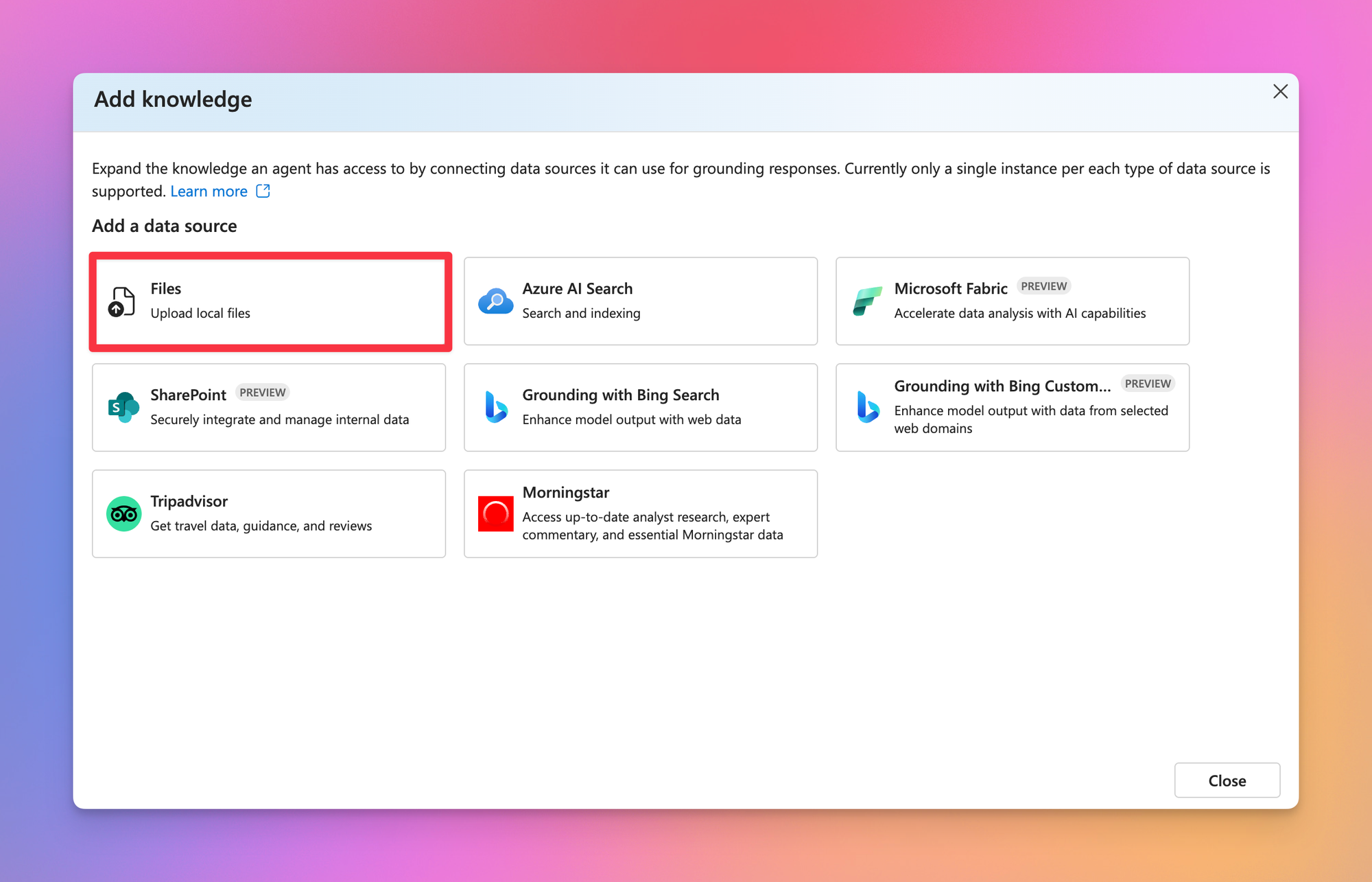
After some research I decided to stick with the basic file upload instead of Azure AI Search. I did not want to deal with the setup involved in Azure AI Search like setting up indexes. And to be honest, I have no idea how to exactly either.
After choosing the option in the wizard, it allows you to directly upload the files you want to use. I threw a random selection of documents into it to see what happens.
The initial upload only allows for up to 100 files. After that, up to 10.000 files in batches of 500 can be added.
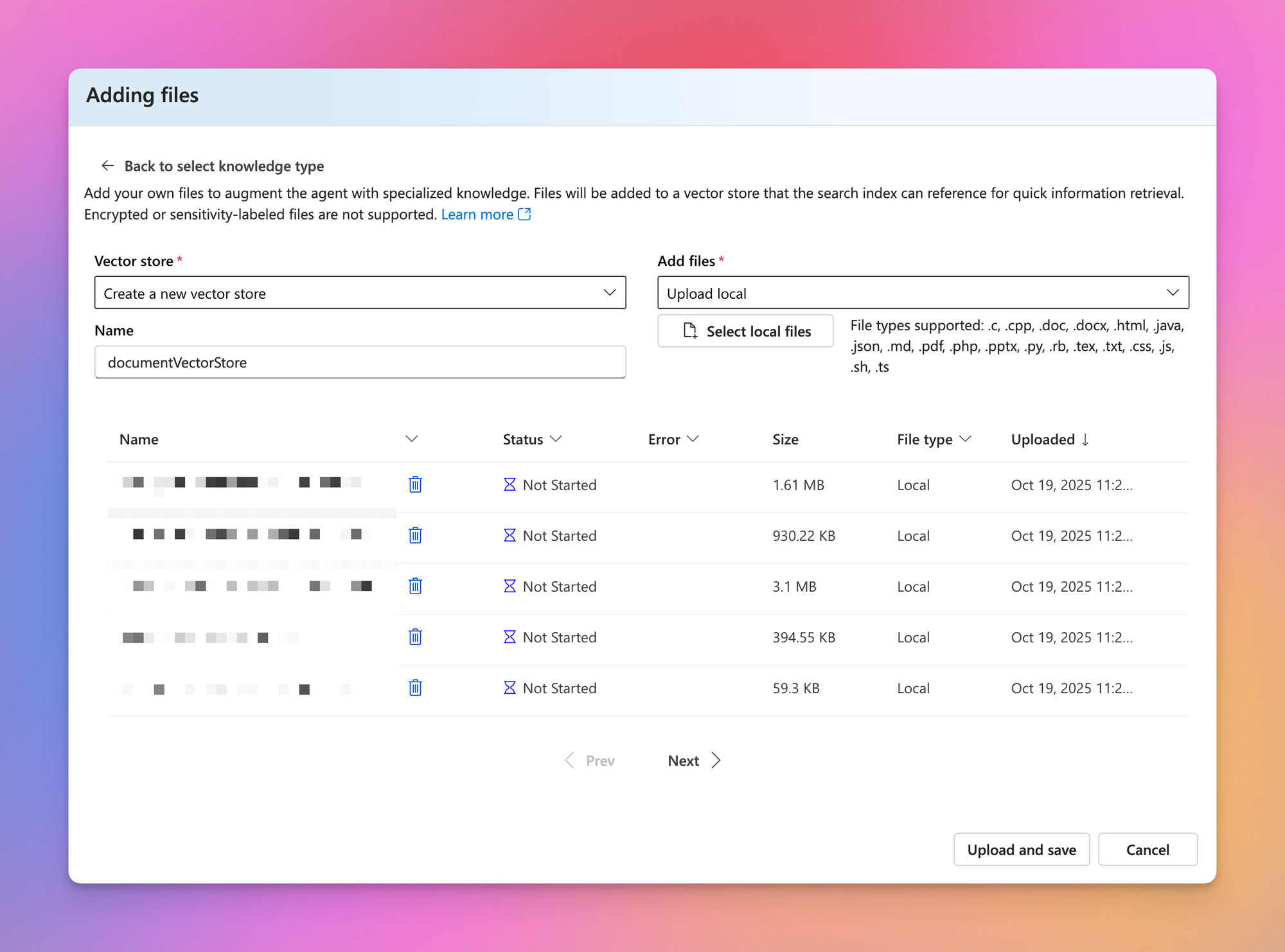
After waiting for the upload and processing, I saw that quite a few documents threw the error Indexing failed – The file could not be parsed because it is empty.

For the moment, I don’t actually know what causes this error. Probably something wrong with the document where OCR or content indexing isn’t working correctly. For this little test, I just decided to ignore this.
Testing the agent
After the documents where processed, I could move on to test the agent.
I used this prompt:
Summarize all purchases from fileee. Only include the date, and what was purchased. Not the price or invoice number.This was the result:
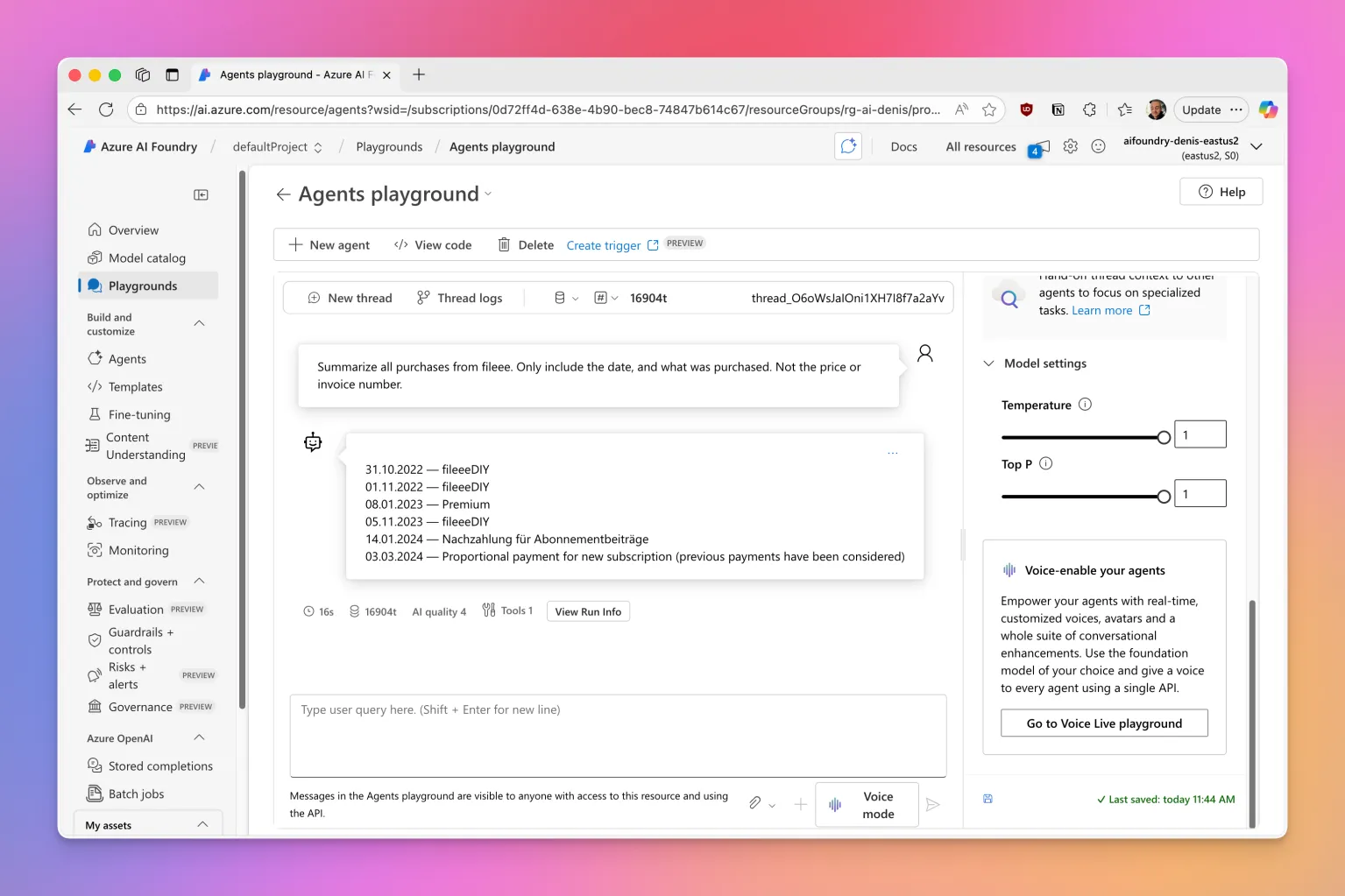
As we can see, the agent correctly referenced the documents I uploaded and responded with the information requested.
Bye
Overall, this process was pretty easy and painless. I don’t like how the errors thrown in the documents are very generic and don’t provide helpful information about the actual issue.
Obviously this setup is nowhere near production ready or scalable. However, it was a fun way to experiment around with this sort of stuff.
If you like what you’ve read, I’d really appreciate it if you share this article 🔥
What do you think? Leave a comment! I’d love to hear your thoughts.
Until next time! 👋