Run Notion MCP Server in Azure Container Apps
Learn how to deploy the official Notion MCP server on Azure Container Apps using Bicep. This guide covers why the Azure CLI approach fails with double-dashed arguments and provides a working Bicep template to get your MCP server running for use with n8n and other automation tools.

Recently I’ve been experimenting with the Notion MCP (https://developers.notion.com/docs/mcp). However, i’ve continually run into an issue: Authentication.
I want to use the MCP Server from within things like n8n or Agents running on Azure, so the OAuth authentication isn’t working for me.
Thats when I found this MCP server:
 makenotion
In this post, you will learn how to run this MCP server on Azure Container Apps, allowing you to call it from wherever you need it. I will show the deployment via Azure CLI (and it’s pitfalls) and also via Bicep.
Deploy Container App using Azure CLI ( ‼️ Don’t!)
To do this via Azure CLI (which is a bad idea, i’ll explain why later), first we need a Resource Group. In this demo, I will call it rg-notion-mcp and create it in Azure region germanywestcentral. This will house all of the resources we will be creating.
az group create -n rg-notion-mcp -l germanywestcentralNext, we need a container app environment to house our container app. This will be called env-notion-mcp.
az containerapp env create -g rg-notion-mcp -n env-notion-mcp -l germanywestcentralBefore proceeding, we need two things:
- A Notion integration token which allows access to the Notion environment. This page show how to create the token: https://developers.notion.com/docs/authorization#internal-integration-auth-flow-set-up
In my example this isntn_52161852504MoJupq1tk4fjRy9EM2RnwneFbMlB5FzC6Fa(don’t even bother to try if mine still works 😉) - An auth token we will be using to authenticate against the MCP endpoint we are about to create. You can make this up yourself.
In my example this is9f4b2d7e1a8c5f0b3d6e9a1c2b7f8e4d
With these, we can now create the container app:
az containerapp create -g rg-notion-mcp -n notion-mcp --environment env-notion-mcp --image mcp/notion:latest --ingress external --target-port 443 --min-replicas 1 --max-replicas 2 --secrets notion-token=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 auth-token=9f4b2d7e1a8c5f0b3d6e9a1c2b7f8e4d --env-vars NOTION_TOKEN=secretref:notion-token AUTH_TOKEN=secretref:auth-token --command "npx" --args "@notionhq/notion-mcp-server" "--transport" "http" "--port" "443"🚨 That’s where I hit a wall. The double dashed arguments don’t play nice with the Azure CLI. You will run into errors like this:
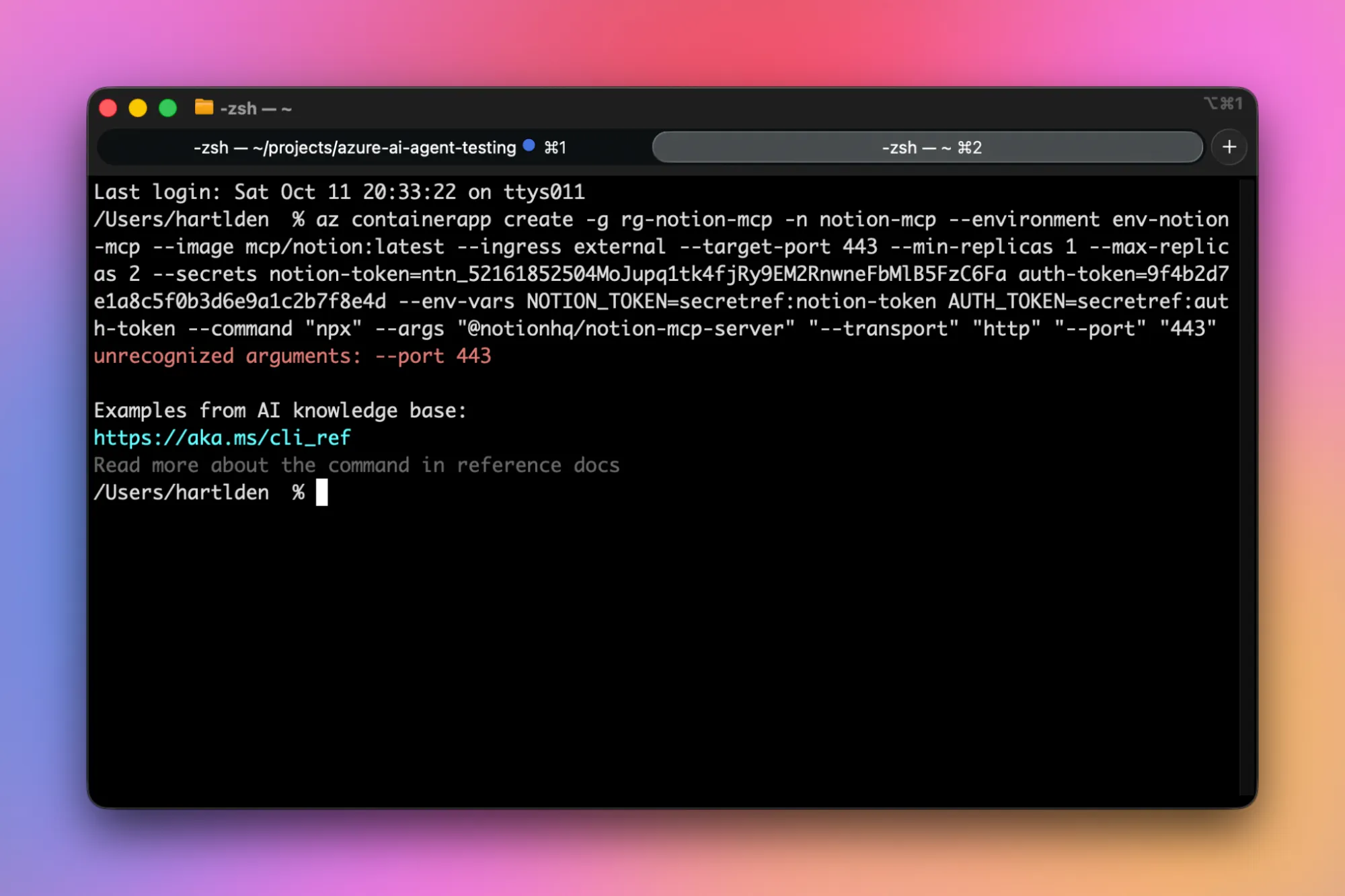
This is because arguments with double dashes are interpreted as arguments for the Azure CLI command, not for the container app.
I’ve tried a couple of ways, but did not find a way to make this work properly directly within the Azure CLI command. Thankfully, there are other options to deploy Azure resources.
Deploy Container App using Bicep Template
We can use Bicep as an alternative to Azure CLI. To start, we also need a resource group. We can create it with the same command as with the Azure CLI approach:
az group create -n rg-notion-mcp -l germanywestcentralNow the Bicep template comes into play. You can also find it on GitHub:
 denishartl
// global parameters

@sys.description('Location for all resources.')
param location string = 'germanywestcentral'

@sys.description('Optional tags to assign to the resources.')
param tags object = {}

// Container App Environment parameters
@sys.description('Name of the Container App Environment.')
param paramContainerAppEnvironmentName string = 'aca-env-notion-mcp'

// Container App parameters

@sys.description('Name of the Container App.')
param paramContainerAppName string = 'aca-notion-mcp'

@sys.description('Authentication token for access to the Notion API.')
@secure()
param paramNotionToken string

@sys.description('Authentication token for securing access to the MCP server.')
@secure()
param paramAuthToken string

// Resources

resource resContainerAppEnvironment 'Microsoft.App/managedEnvironments@2025-01-01' = {
  name: paramContainerAppEnvironmentName
  location: location
  tags: tags
  properties: {
    workloadProfiles: [
      {
        name: 'Consumption'
        workloadProfileType: 'Consumption'
      }
    ]
  }
}

resource resContainerApp 'Microsoft.App/containerApps@2025-01-01' = {
  name: paramContainerAppName
  location: location
  tags: tags
  properties: {
    managedEnvironmentId: resContainerAppEnvironment.id
    configuration: {
      secrets: [
        {
          name: 'auth-token'
          value: paramAuthToken
        }
        {
          name: 'notion-token'
          value: paramNotionToken
        }
      ]
      ingress: {
        external: true
        targetPort: 443
        allowInsecure: false
      }
    }
    template: {
      containers: [
        {
          image: 'mcp/notion:latest'
          name: paramContainerAppName
          command: [
            'npx'
          ]
          args: [
            '@notionhq/notion-mcp-server'
            '--transport'
            'http'
            '--port'
            '443'
          ]
          env: [
            {
              name: 'NOTION_TOKEN'
              secretRef: 'notion-token'
            }
            {
              name: 'AUTH_TOKEN'
              secretRef: 'auth-token'
            }
          ]
          resources: {
            cpu: json('0.5')
            memory: '1Gi'
          }
        }
      ]
    }
  }
}

// Outputs

output outAcaFqdn string = resContainerApp.properties.configuration.ingress.fqdn
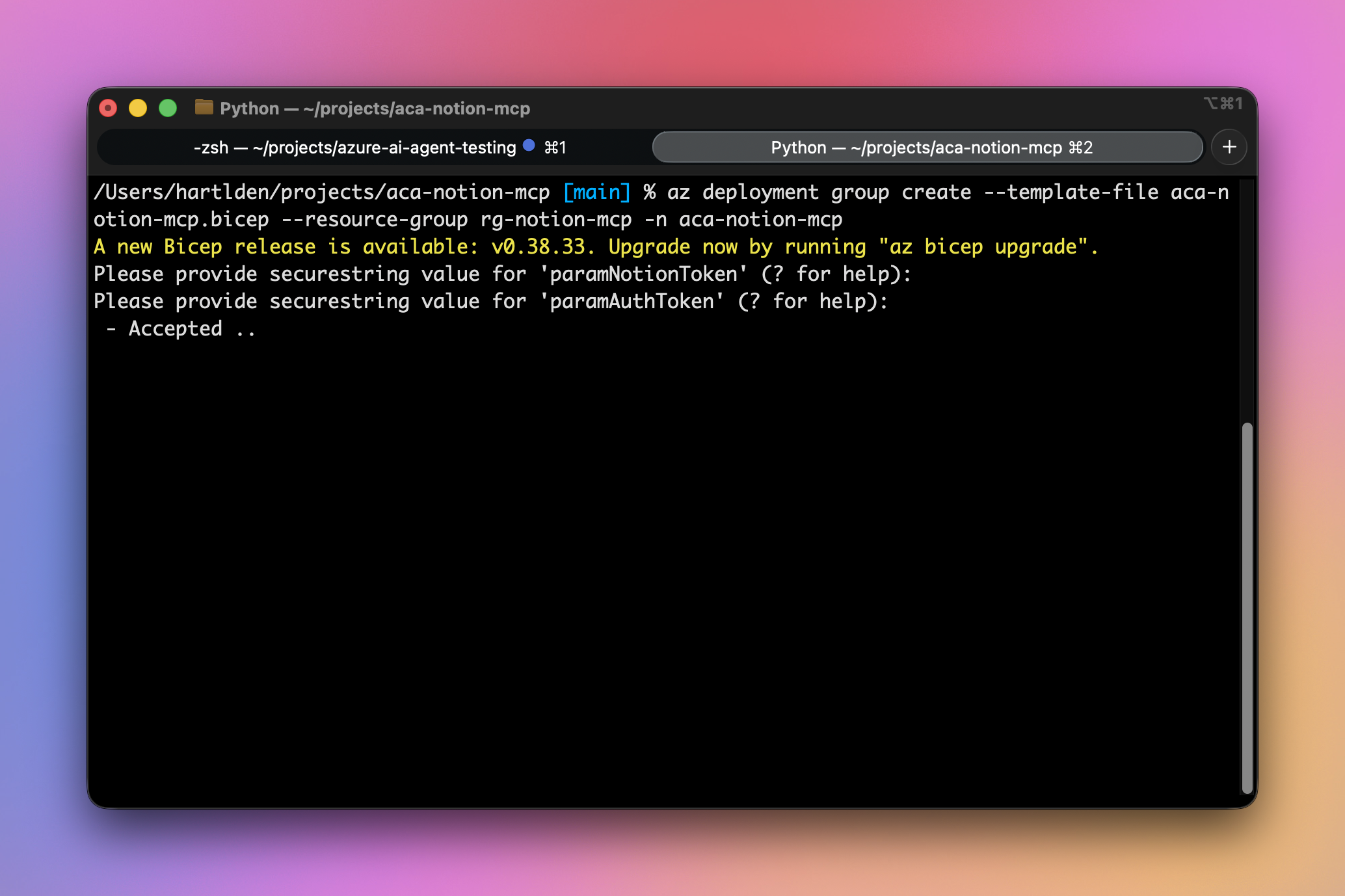
After filling out all parameters at the top, it’s time to deploy the Bicep template using Azure CLI.
az deployment group create --template-file aca-notion-mcp.bicep --resource-group rg-notion-mcpThe command will prompt for the Notion token and auth token, and then start deploying the required resources to Azure.
If the deployment is successful, you should see an output like this, containing the URL to access your container app:
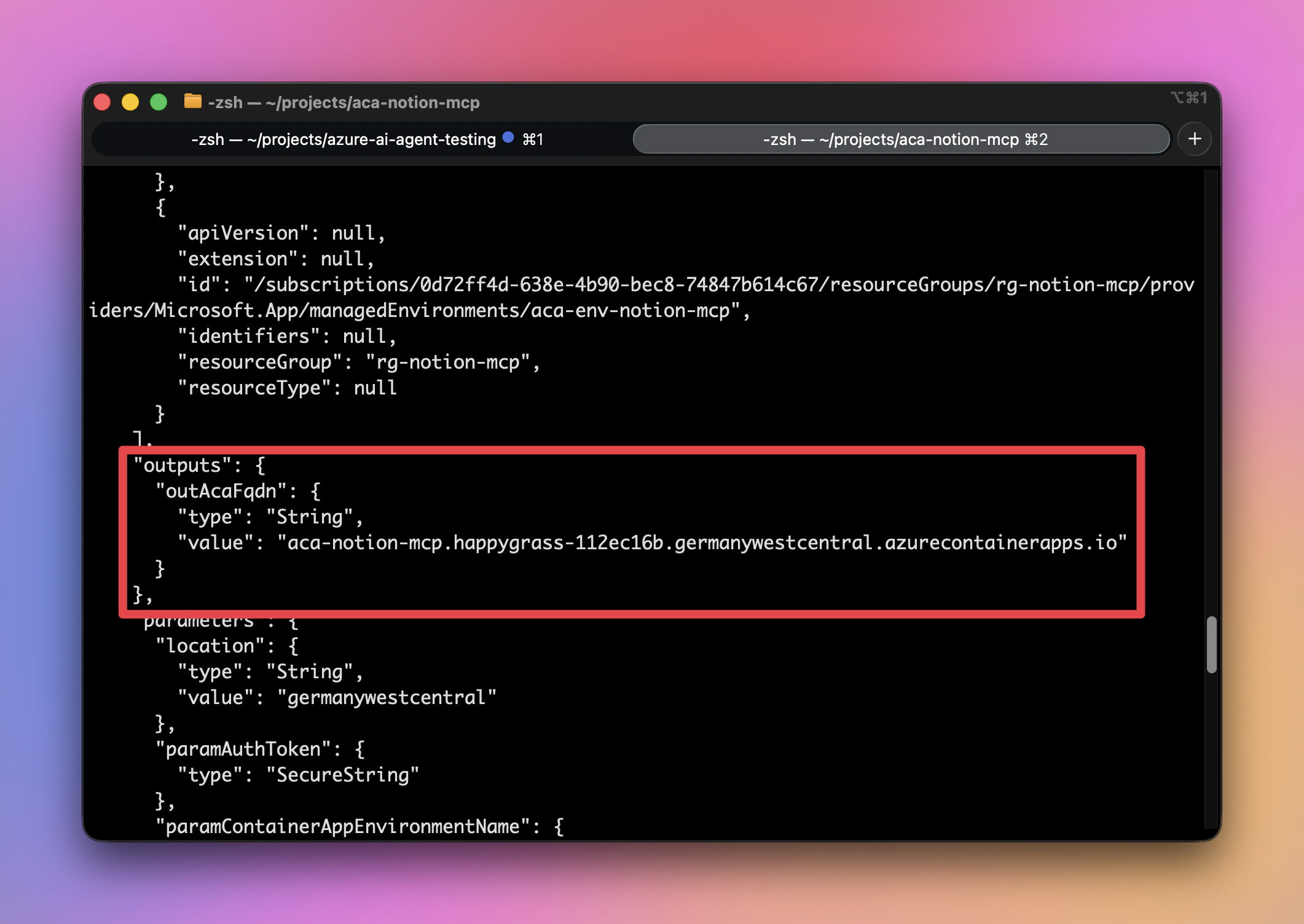
And with that, the deployment is finished and it’s time to test and use the Notion MCP server 🎉.
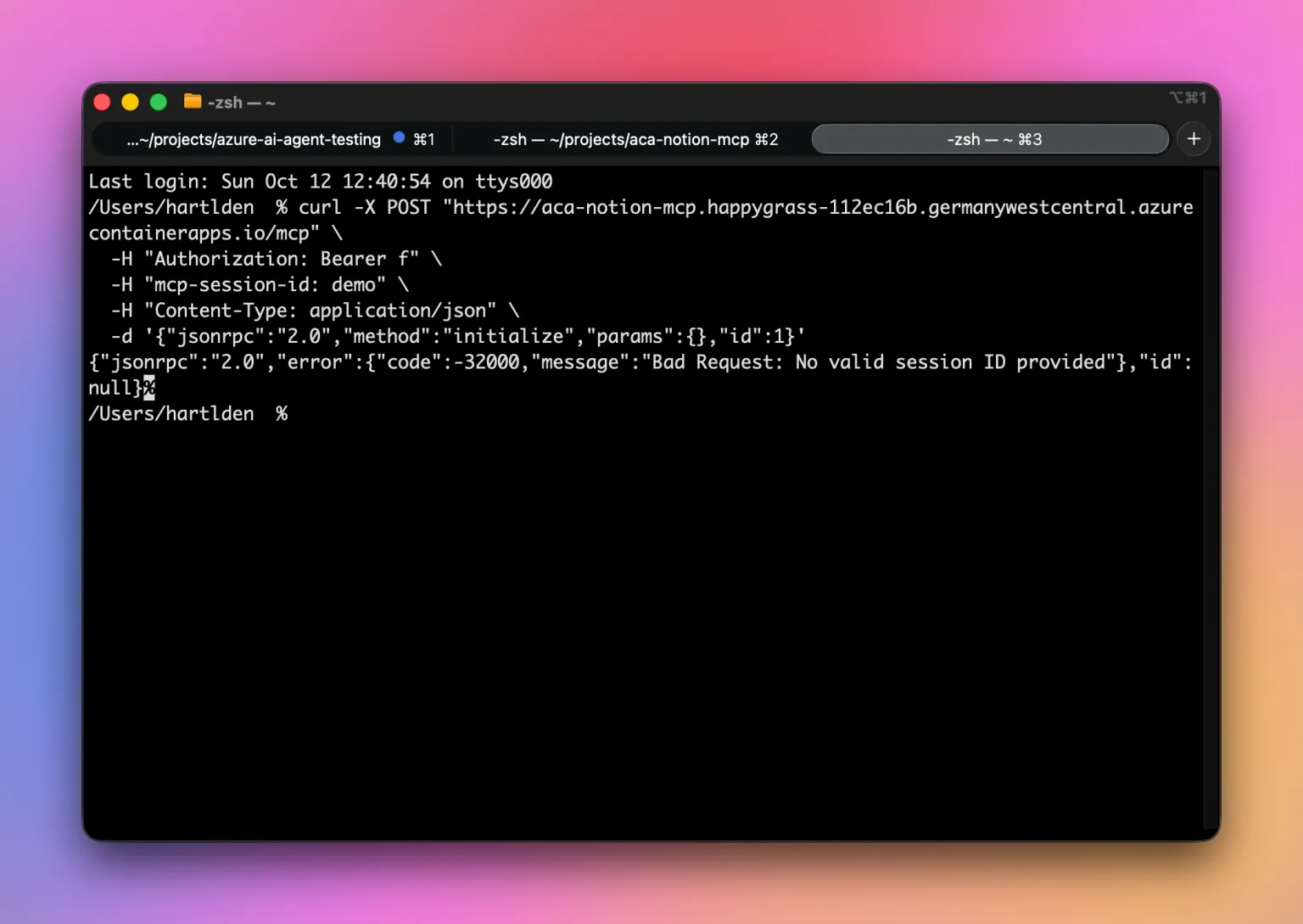
We can test the MCP server using a simple curl command:
curl -X POST "https:///mcp" \
  -H "Authorization: Bearer " \
  -H "mcp-session-id: demo" \
  -H "Content-Type: application/json" \
  -d '{"jsonrpc":"2.0","method":"initialize","params":{},"id":1}'
You should see a response like this. This means the MCP server is working and we can use it.
Bye
I hope this post and was helpful to you. Feel free to reach out via comments/contact form/socials if you have and feedback or questions.
You can find the Bicep template on GitHub:
 denishartl
Until next time! 👋