Tracking workouts from Apple Fitness in Notion using Azure Functions and AI
An over-engineered solution to sync Apple Fitness workouts to Notion. Uses an iOS Shortcut to capture workout screenshots, Azure Functions for processing, and Azure OpenAI to extract the data automatically.

Recently I’ve been getting more into two things:
- Running (mainly to improve my cardiovascular fitness)
- Notion (because it’s fun and in a weird way also addicting)
I use an Apple Watch and the Apple Fitness app to track my runs, but I wanted to be able to also track them in Notion. I also wanted some other information as well, like the knee pain I experienced during the run. This is an issue I’ve been dealing with for quite some time now, and I want to see if regular running can improve my pain. Since Apple keeps their ecosystem on lockdown, I had to find a workaround. I am an Apple fanboy, but boy do I hate that about them – just give me an API so I can access my data PLEASE 😩
Why not enter the data manually? Because that would be so not-cool and doesn’t even use AI. And building overcomplicated systems for small problems is hella fun 🤩
So I came up with an solution. An very over engineered one, i’ll admit. I won’t go into every technical details on how to set this up, because you should have some understanding of how all of this works if you consider using this solution for your workflow. I will try to explain what it is and how it works however. Let’s dive in 🔥
The project described below is not a click-and-go solution for everyone. If you want to use this for yourself, you will need some experience in Azure and Python. You will also need to update the Function App code to work with your Notion setup.
Showcase
Before getting into the nitty gritty, let me show you how it works. Basically, this is an iOS shortcut, which sends some form data along with an screenshot of the workout to an Azure Function App. This then analyzes the screenshot using an Azure OpenAI model and inputs the data into Notion.
Here is an example of how it works:
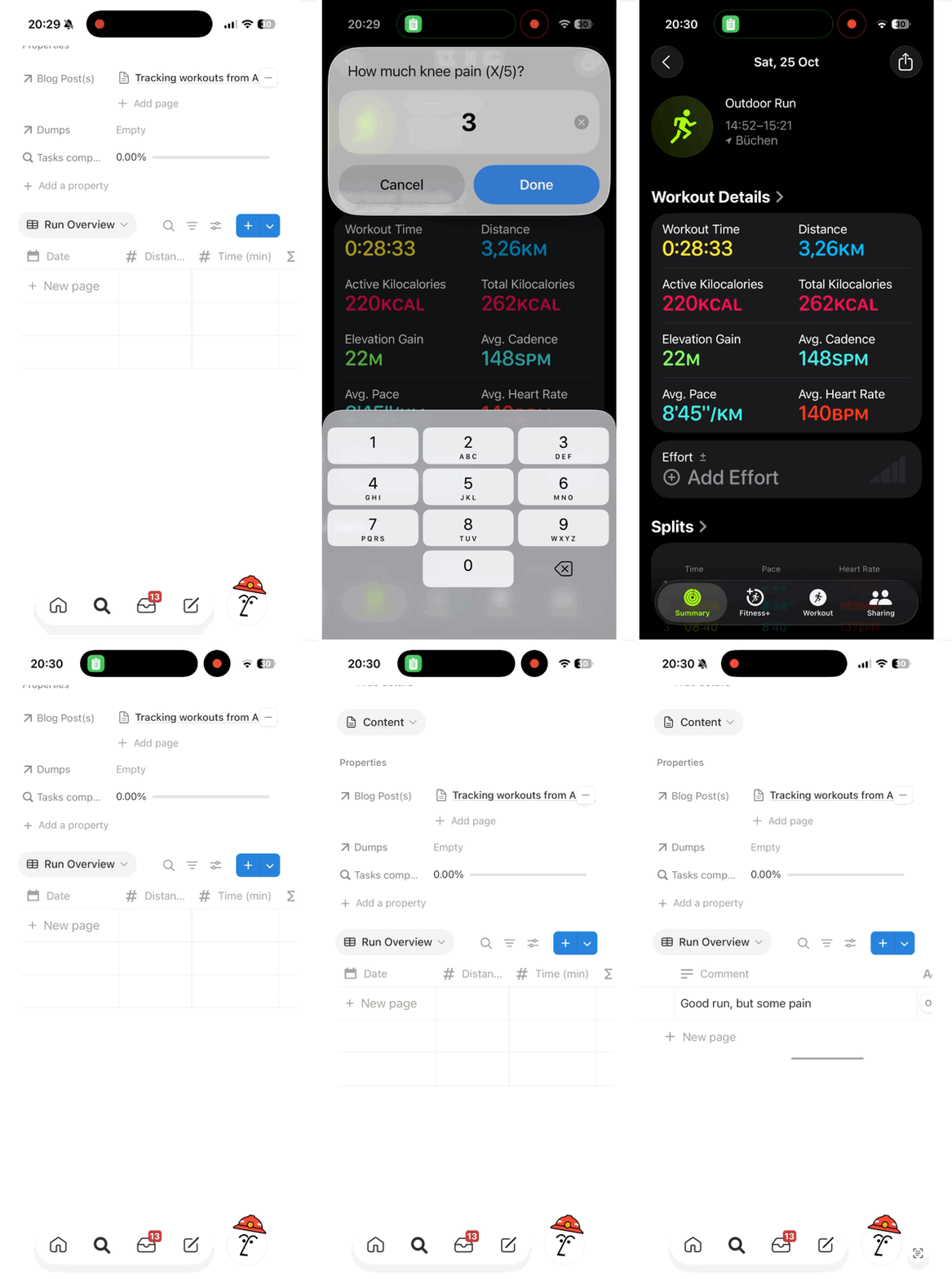
We can see, that we start with an empty Notion database. Once the iOS shortcut gets triggered, it closed the iOS control center, takes a screenshot of the workout, prompts some information, and then sends it off to Azure for processing. After some time, the data gets added as a new entry to the Notion database.
Workflow and architecture
This is the technical workflow of the solution:
- Use the iOS shortcut to send an screenshot and other prompted information to Azure Function
- Process the screenshot using an Azure OpenAI service to extract all relevant information
- Upload the screenshot to an Azure Blob Storage account for archival and debug
- Save the extracted information together with the information from initial user prompts into the Notion database
This diagram showcases this workflow in a more visual way:

iOS Shortcut
The iOS shortcut is pretty basic. Let’s go through all of the steps it performs:
- Close the iOS control center
- Wait 1 second for animations to finish
- Take a screenshot of the workout
- Prompt for the amount of knee pain I had
- Prompt for further comments
- Send the screenshot together with the data from the prompts to the Azure Function endpoint
Alternatively, find the shortcut template in the projects GitHub repo: https://github.com/denishartl/workouts-to-notion/blob/main/Workout To Notion Template.shortcut
After downloading and importing it into the Shortcuts app, you have to set your own endpoint there the webhook should be sent.
The function app then needs to be deployed manually. I did this from within VSCode. You can also choose to go another route for deployment if you want to.
Bicep and Azure Function App deployment
To make life easy, I’ve prepared a Bicep template which can be used to create all the required infrastructure for the Azure Function within Azure.
You can find the Bicep template within the GitHub repo:
 denishartl
Using the template, the following resources will be created:
- An resource group for all resources
- Azure OpenAI account with an gpt-5-mini model for image analysis
- Storage Account for image archival (90 day retention policy)
- Key Vault with placeholder secrets for Notion API key and database ID
- Function App with the required supporting resources
- Storage account
- Application Insights
- App service plan
- All required RBAC permissions for services to communicate
Here is how you can deploy the Bicep file to Azure using Azure CLI:
# Login to Azure
az login

# Set your subscription (if you have multiple)
az account set --subscription "your-subscription-id"

# Deploy infrastructure to Azure
az deployment sub create \
  --location switzerlandnorth \
  --template-file infrastructure/main.bicep \
  --parameters infrastructure/main.bicepparam
Before deploying the Azure Function app, make sure the set the secret values within the Key Vault. You will need your Notion database ID and also an API token you get by creating a Notion integration.
Make sure to add the Notion integration to your database, otherwise it won’t be able to create the Notion database entry. Been there, done that 🫠
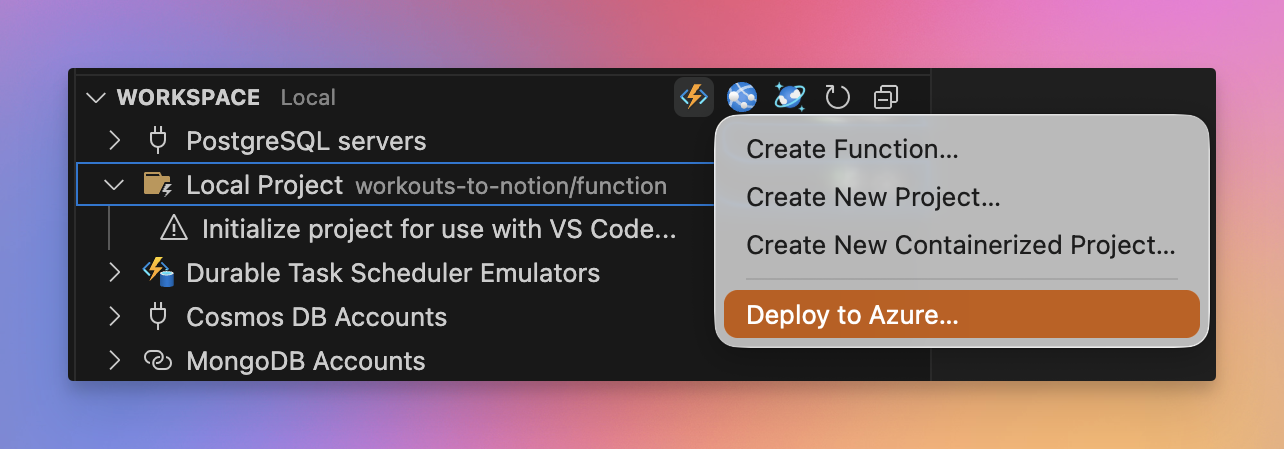
The function app then needs to be deployed manually. I did this from within VSCode. You can also choose to go another route for deployment if you want to.
Bye
I hope you found this interesting and maybe even use this as inspiration for setting up your own solution. It was a really fun challenge to solve a little problem I had with tools and ways I love to use.
You can find the GitHub repo for this whole project (including the iOS shortcut) here: https://github.com/denishartl/workouts-to-notion
I know that most of the explanation in this post is at an pretty high level. So please, let me know if there are any questions, and I will do my best to answer them. Any other feedback is also very welcome of course ❤️
If you like what you’ve read, I’d really appreciate it if you share this article 🔥
Until next time! 👋